A new Windows laptop rarely arrives clean. Between Microsoft’s own preinstalled apps and whatever the manufacturer bolted on, a fresh PC can carry a dozen pieces of software you never asked for. Some of it’s harmless. Some of it nags you to buy something you don’t need.
This is a practical cleanup list: what’s safe to remove, what to replace it with, and the handful of preinstalled tools worth keeping. It’s written for a normal Windows 11 setup in 2026, new machine or old.
If part of your cleanup is also swapping paid software for free tools, see tech subscriptions you can replace for free for the non-Windows side of that.
How we compared
Nothing on this list rests on us wiping a laptop and reporting what happened. It rests on what Microsoft itself documents.
The removal steps come from Microsoft’s own uninstall support article. Which apps are on the way out comes from the deprecated-features list on Microsoft Learn, which gives a date for every entry, so “being phased out” is a citation rather than a hunch. The antivirus recommendation comes from AV-TEST’s published lab results, and the renewal pricing comes from Norton’s own product page.
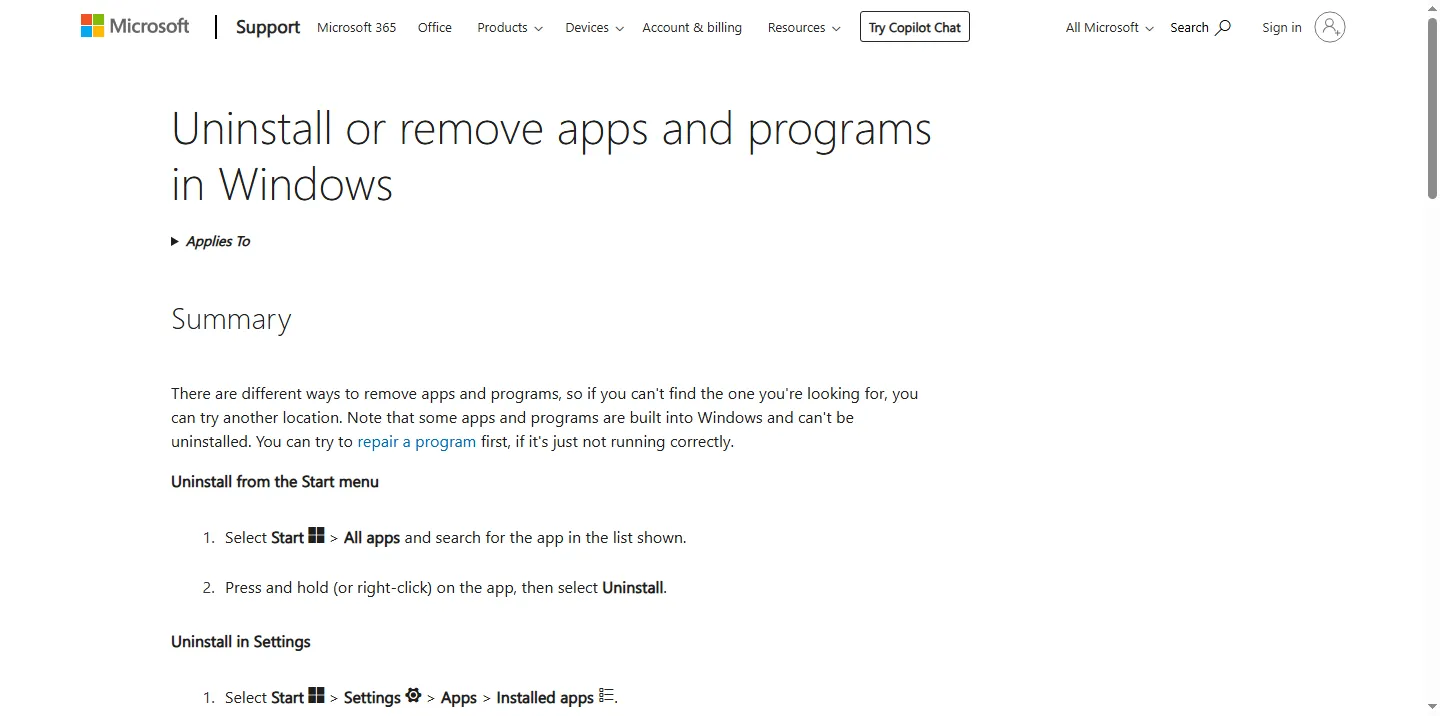
Microsoft’s official uninstall instructions (Settings > Apps > Installed apps).
Microsoft’s documented path is Settings > Apps > Installed apps, then More and Uninstall. Two alternatives exist for apps that resist: Start > All apps, then right-click the app and choose Uninstall, or Control Panel > Programs > Programs and Features for desktop software. Microsoft states directly on that page that some apps can’t be uninstalled from Settings, and points at Control Panel as the fallback. That’s the vendor telling you the tidy path doesn’t always work.
Something only makes the list below if removing it doesn’t break Windows Update, security, or a feature you’d actually miss. This isn’t a wipe-everything guide.
What to remove, and what replaces it
| What you likely have | What to do instead | Why it earns removal |
|---|---|---|
| OEM trial antivirus (McAfee, Norton) | Microsoft Defender (built in, free) | Trial expires into paid nagging, and Defender scored a perfect 18/18 at AV-TEST |
| Duplicate OEM update utilities | Windows Update, plus one official tool only | Multiple overlapping updaters waste RAM and startup time |
| Preinstalled games and shortcut tiles | Uninstall; install only what you use | Pure clutter that serves the OEM, not you |
| Copilot app (if unused) | Uninstall via Settings, or the new removal policy | Windows 11 gained a policy in April 2026 that makes removal stick |
| Xbox Game Bar | Disable in Settings > Gaming, do not hunt for an uninstall | Built into Windows, so it disables rather than uninstalls |
| Xbox app (if you don't game here) | Uninstall via Settings > Apps > Installed apps | A Store app with background services and no purpose on a work laptop |
| Paint 3D | Paint or Photos, or Paint.NET and Krita for real editing | Removed from the Microsoft Store on 4 November 2024 |
| Widgets / news feed panel | Disable via Settings > Personalization > Taskbar | Ad-heavy feed with background resource use |
| Consumer Teams auto-install | Uninstall if unused; use a browser instead | Auto-launches at startup for people who never open it |
| "PC speed-up" and registry cleaner trialware | Storage Sense (Settings > System > Storage) | Trial cleaners rarely help and exist to sell an upgrade |
1. OEM trial antivirus
Most new laptops from Dell, HP, and Lenovo ship with a 30 to 90 day trial of McAfee or Norton. Once it expires it nags, and until it’s removed it sits on top of protection Windows already runs.
The case for removing it got much stronger this year. AV-TEST, the German independent lab, tested Microsoft Defender Antivirus (Consumer) 4.18 on Windows 11 Professional across March and April 2026 and awarded 6.0 out of 6.0 for protection, 6.0 for performance, and 6.0 for usability. A perfect 18, and AV-TEST’s TOP PRODUCT badge, which needs at least 17.5. Defender is not the weak default it used to be.
The money side is just as blunt. Norton’s own product page lists 360 Standard at $39.99 for the first year across three devices, then $94.99 on renewal. Uninstall the trial through Settings > Apps, or use the vendor’s official removal tool if the standard uninstaller leaves debris behind.
Norton and McAfee both push a bundled VPN alongside that antivirus trial, and the pairing deserves its own scrutiny. See free VPN vs paid VPN before assuming the bundle is the better deal.
2. Duplicate OEM update utilities
Dell SupportAssist, HP Support Assistant, and Lenovo Vantage all do a version of the same job: checking for driver and firmware updates. One of these genuinely earns its place, because manufacturers ship firmware Windows Update won’t offer you. Two or three running at once is redundant background load.
Keep the single official utility from your manufacturer. Remove any duplicates that came bundled alongside it.
3. Preinstalled games and shortcut tiles
Candy Crush and its imitators, shopping app shortcuts, and social media tiles pinned to Start are there because the OEM was paid to put them there. They add startup clutter and Start menu noise, and removing them affects nothing else on the system.
Right-click the Start tile and choose Uninstall, or work through Settings > Apps > Installed apps.
4. The Copilot app, if you don’t use it
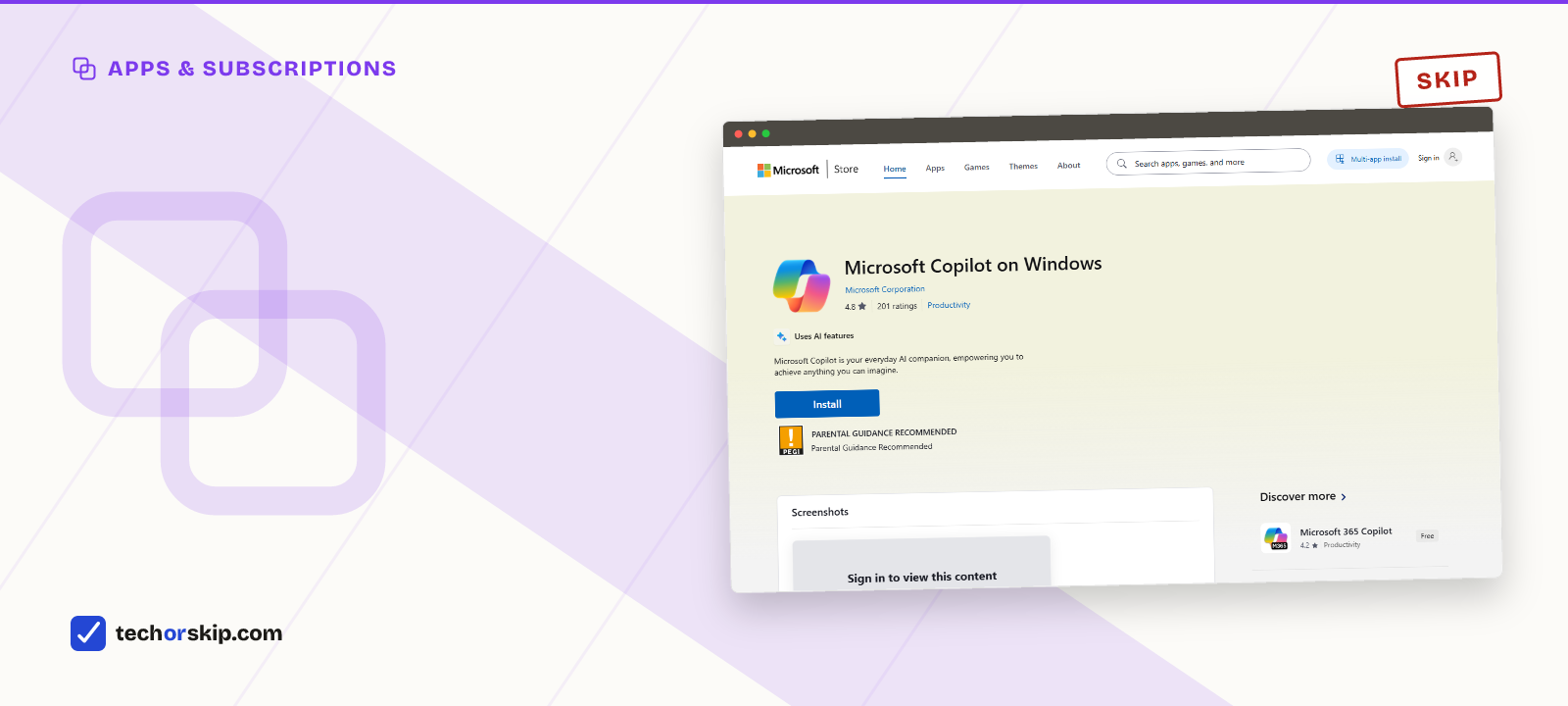
The Copilot app’s Store listing. Worth a look if you’re not sure whether you still have it installed.
You’ve been able to uninstall the Copilot app from Settings for a while. The complaint was that it kept coming back after updates.
The Windows 11 April 2026 update addressed that with a Group Policy called “Remove Microsoft Copilot app,” under User Configuration > Administrative Templates > Windows Components > Windows AI. Windows Latest, which documented the change, reports it applies on Windows 11 25H2 where both Microsoft 365 Copilot and Microsoft Copilot are installed, the app hasn’t been launched in 28 days, and it wasn’t user-installed. Those conditions matter: this is aimed at machines where Copilot arrived unasked, not at people who installed it deliberately.
For most home users the ordinary Settings uninstall is still the route. If it reappears after a feature update, that’s the known behavior the policy exists to fix. If you’d rather use a browser-based assistant anyway, our roundup of genuinely useful free AI tools covers the free options.
5. Xbox Game Bar and the Xbox app
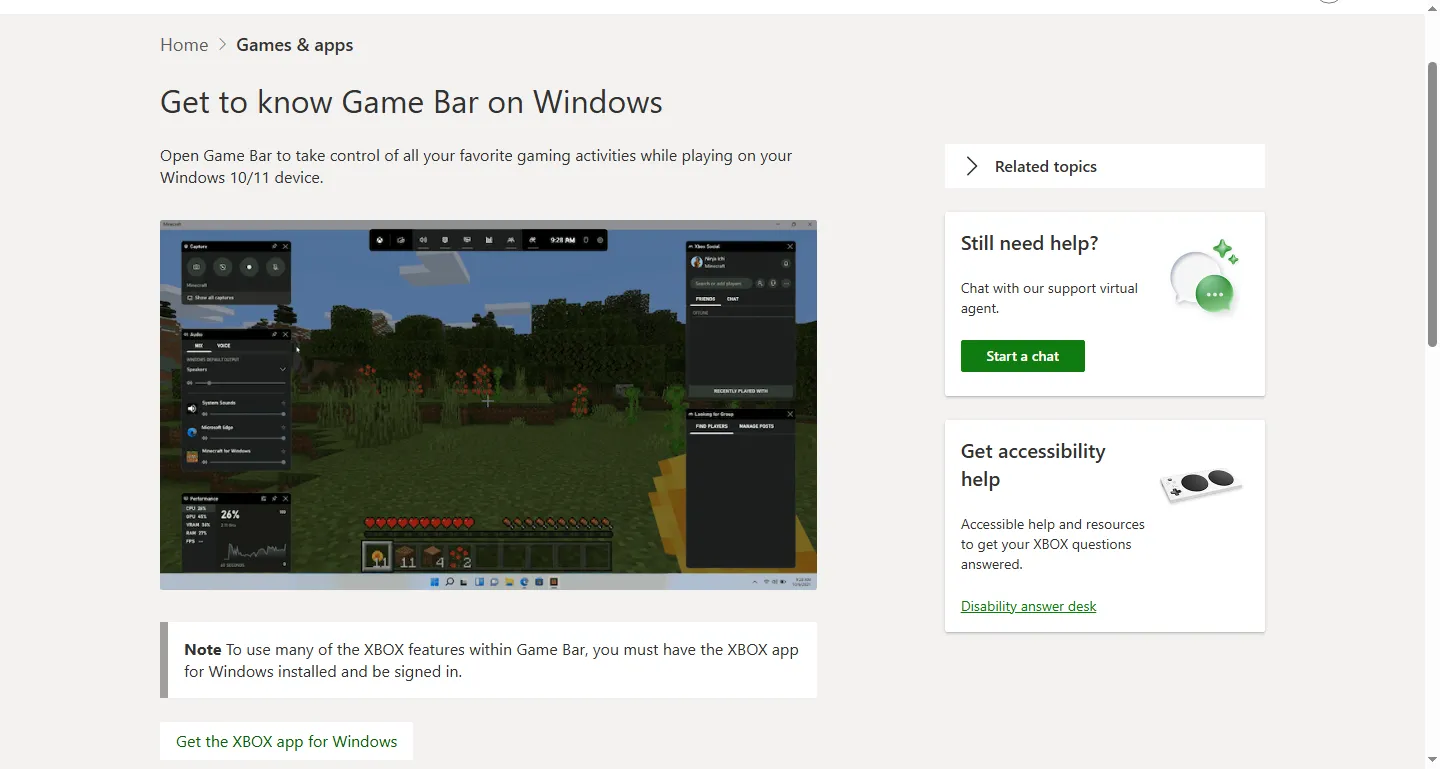
Microsoft’s Game Bar support page showing the overlay.
These two get treated as one item, and they shouldn’t be.
Microsoft describes Game Bar as the customizable gaming overlay built into Windows, opened with Windows key + G, carrying widgets for screen capture, recording, volume and music control, performance monitoring, and Xbox friend chat. Built into Windows is the operative phrase. It isn’t a Store app you can uninstall from Settings, so guides telling you to remove it are pointing at something that isn’t there. Turn it off under Settings > Gaming > Game Bar instead.
The Xbox app is different. That one is a normal Store app and uninstalls cleanly through Settings > Apps > Installed apps. On a laptop that never sees a game, removing it takes real background services with it.
Worth knowing before you disable Game Bar entirely: Microsoft’s own deprecation notes recommend Game Bar as one of the replacements for the retired Steps Recorder, so it’s the built-in screen recorder on a machine with nothing else installed.
6. Paint 3D
Paint 3D isn’t so much worth removing as already gone. Microsoft’s deprecated-features list records it as deprecated in August 2024 and removed from the Microsoft Store on 4 November 2024, with Paint or Photos named as the replacements for 2D work. Existing installs keep running, but they’ll never see another update.
For real editing power, Paint.NET is free, simple, and handles layers and effects well. Krita is free and built for serious digital painting and illustration.
While you’re in there, the same Microsoft list marks the Maps app as removed from the Store by July 2025, WordPad as gone from all editions starting with Windows 11 24H2, and 3D Viewer as scheduled to leave the Store on 1 July 2026. If any of those are still sitting on your Start menu, they’re dead weight with a documented expiry date.
7. Widgets and the news feed panel
The Widgets panel on the taskbar is mostly an ad-supported news feed with a weather tile attached, and it runs in the background even when closed. Settings > Personalization > Taskbar turns it off entirely.
Small change. Real difference, for distraction as much as resources.
8. Consumer Teams, if you never open it
Microsoft auto-installs the personal version of Teams on new Windows setups, and it often launches at startup whether or not you’ve opened it once.
There’s a wrinkle worth knowing. Skype retired on 5 May 2025, and Microsoft’s own retirement notice directs former Skype users to Teams Free, transferring contacts and chats automatically when you sign in with Skype credentials. Microsoft’s page also says exported Skype data starts being deleted from 1 April 2026. If you were a Skype user and never followed that migration, the Teams install on your machine may be the thing holding your old contact list. Check before uninstalling. If your calls happen elsewhere, remove it through Settings; nothing depends on it.
9. “PC speed-up” and registry cleaner trialware
Some OEMs bundle trial registry cleaners and “PC optimization” tools that exist mainly to sell a paid upgrade. Windows’ own Storage Sense, under Settings > System > Storage, handles temp file cleanup with no subscription pitch attached.
10. OEM-bundled cloud storage and note-app trials
A Dropbox or Evernote trial installed by the manufacturer competes with whatever you’d have chosen for yourself, and the free tiers on both have shrunk. If you haven’t picked your own yet, our guide to free tech subscription replacements covers the current free options for storage and notes.
Worth it for
- A debloated laptop boots faster and carries less background load
- Every item here is reversible: almost all of it reinstalls later
- None of this needs paid cleaner software, since Windows' own tools cover it
- Microsoft documents most of these removals itself, so you are not guessing
Skip it if
- Some OEM updater apps genuinely help with drivers, so don't remove all of them blindly
- A few removed apps reinstall themselves after a major Windows Update
- Game Bar disables rather than uninstalls, which trips up a lot of debloat guides
- Uninstalling the wrong system component can cause a driver issue
Alternatives
- If your cleanup includes swapping paid tools for free ones beyond Windows apps, see tech subscriptions you can replace for free.
- Removing trial antivirus and wondering what to add back? Our best password managers guide covers the other half of a basic security setup.
- Looking for something to replace an unused Copilot app? Check free AI tools that are genuinely useful.
Verdict
SKIP the OEM trialware, the preinstalled games, and the background apps you never open. Keep one official driver utility from your manufacturer, and keep Microsoft Defender, which now scores a perfect 18 out of 18 at AV-TEST and costs nothing. For Game Bar, disable rather than chase an uninstall that doesn’t exist. Everything else on this list has a documented removal path from Microsoft itself.
Common questions
What preinstalled Windows 11 apps are safe to uninstall?
OEM trial antivirus like McAfee or Norton, preinstalled games and shortcut tiles, duplicate update utilities beyond your manufacturer’s one official tool, and the Copilot or Xbox apps if you don’t use them are all safe to remove through Settings > Apps > Installed apps. Keep one driver-update utility from your manufacturer and Microsoft Defender, which AV-TEST scored a perfect 18 out of 18 in its March-April 2026 test.
Is it safe to remove OEM trial antivirus like McAfee or Norton?
Yes. Microsoft Defender comes built in at no cost and scored 6.0 out of 6.0 for protection, performance, and usability in AV-TEST’s March-April 2026 evaluation, clearing the bar for AV-TEST’s TOP PRODUCT badge. Trial antivirus from the manufacturer expires into paid nagging regardless, so removing it early costs you nothing you weren’t going to lose anyway.