Most phones ship with tracking, notification previews, and background activity turned on by default, because “on” is what gets the most engagement and the fewest support tickets, not what’s best for you. None of the fixes below cost anything or take more than a minute each.
This list sticks to settings that are genuinely worth changing for most people: real reductions in data collection, real battery savings, or real exposure risk if your phone is ever lost, unlocked on a table, or borrowed. It skips settings that sound scary in a listicle but don’t actually change much.
Menu paths shift between OS versions and, on Android, between manufacturers. The paths below reflect current Apple and Google documentation, but check your own Settings app if a label has moved.
How we checked the menu paths
Every path below was matched against Apple’s and Google’s current published support pages in July 2026, not against memory or an older article. Both companies document these screens themselves, which is the only way to get wording right across OS versions you don’t personally own.
Android is the harder case. Manufacturers rename menus, so Google’s own steps are the baseline and your phone may word things slightly differently. When a label doesn’t match, search your Settings app for the feature name.
Where these settings live
| Setting | iPhone path | Android path | Why it matters |
|---|---|---|---|
| Turn off cross-app tracking | Settings > Privacy & Security > Tracking | Settings > Google > All services > Privacy & security > Ads | Cuts the advertising ID apps use to build a profile of you |
| Hide lock screen notification content | Settings > Notifications > [app] > Show Previews | Settings > Notifications > Lock screen notifications | Stops anyone glancing at your locked phone from reading messages |
| Limit location to "while using" | Settings > Privacy & Security > Location Services | Settings > Location > App location permissions | Stops apps tracking you when you're not actively using them |
| Review who can access your data | Settings > Privacy & Security > Safety Check | Settings > Security and Privacy > Privacy > Privacy dashboard | Surfaces shared access, and which apps used which permissions |
Privacy: cut tracking down to size
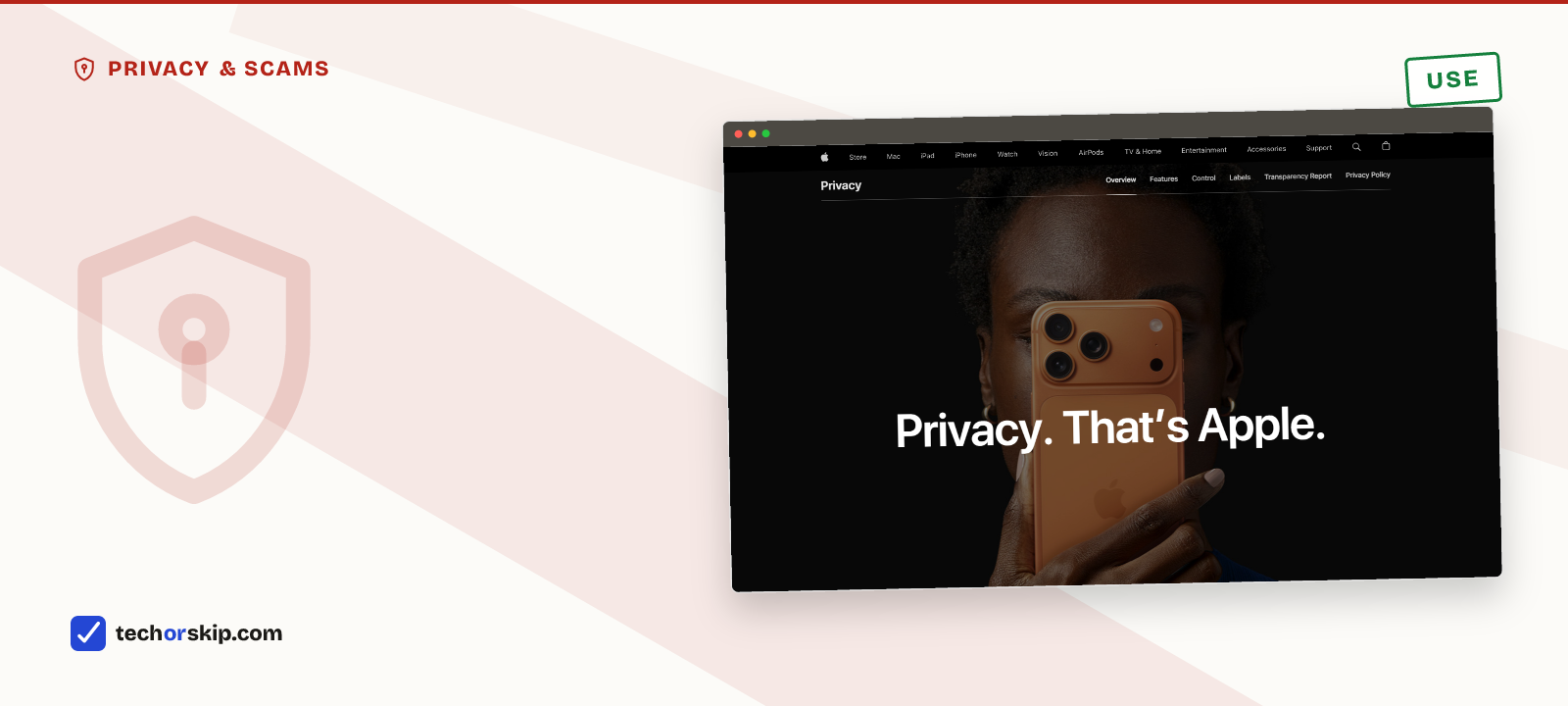
Apple’s privacy page. The marketing promises are one thing; the actual settings below are what enforces them.
Turn off cross-app tracking. On iPhone, go to Settings > Privacy & Security > Tracking and turn off “Allow Apps to Request to Track,” then scroll down and turn off tracking for any app still listed as allowed. This blocks the advertising identifier that lets apps and data brokers link your activity across other apps and sites. It doesn’t remove permissions those apps already have for location, photos, or contacts, so it’s a start, not a full lockdown.
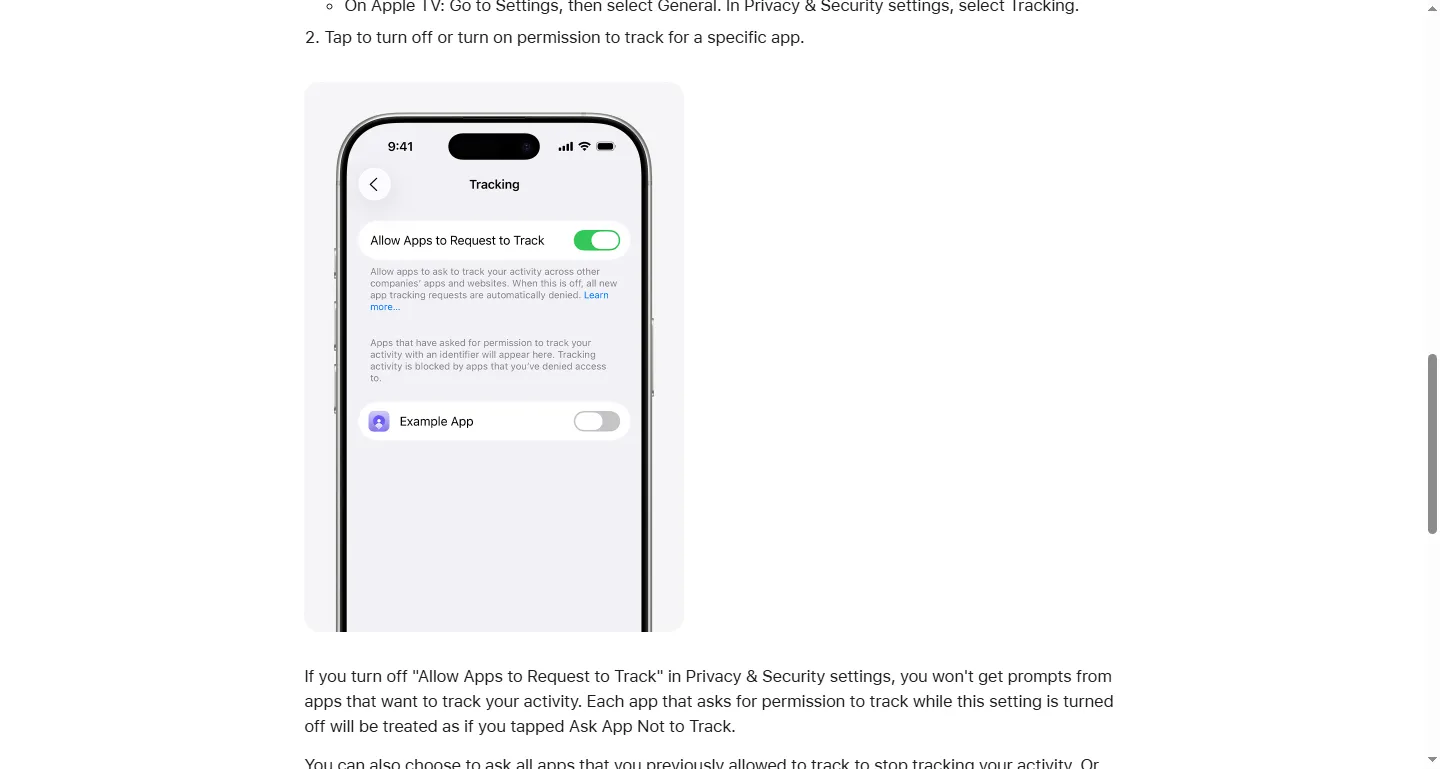
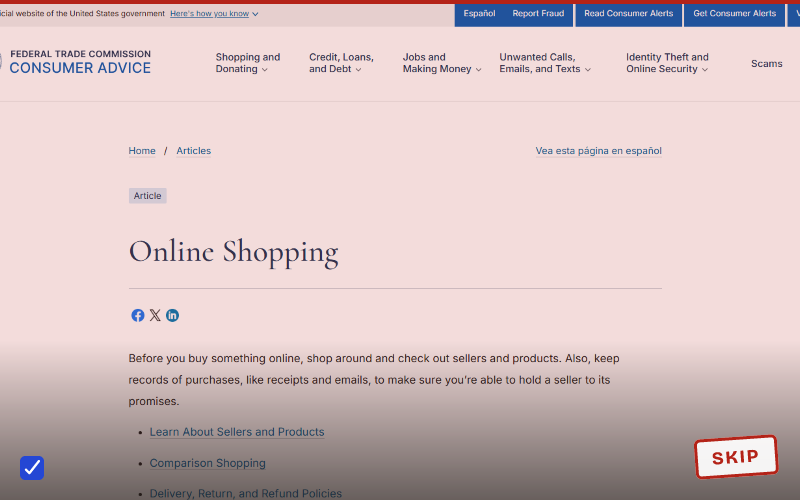
Apple’s own support page for this setting, showing the Tracking screen and the toggle by name.
On Android, the path is under Settings > Google > All services > Privacy & security > Ads (exact wording varies by manufacturer skin). From there you can turn off ad personalization and, on many devices, reset or delete your advertising ID outright. Per Google’s own support documentation, doing this won’t reduce how many ads you see. It changes them from targeted to generic.
None of this stops what a network operator can see on public Wi-Fi, which is a different problem with a different fix. Free VPN vs paid VPN covers when that actually matters and when it doesn’t.
Android’s safety page. Menu wording shifts by manufacturer, so treat this as a starting point, not the exact screen you’ll see.
Open the Android privacy dashboard once. Google’s steps are Settings > Security and Privacy > Privacy > Privacy dashboard, and it needs Android 12 or later. The dashboard shows which apps used which permissions and when, covering the last seven days on Android 13 and up. It’s the fastest way to catch an app that’s been reaching for the microphone or location far more often than its job requires.
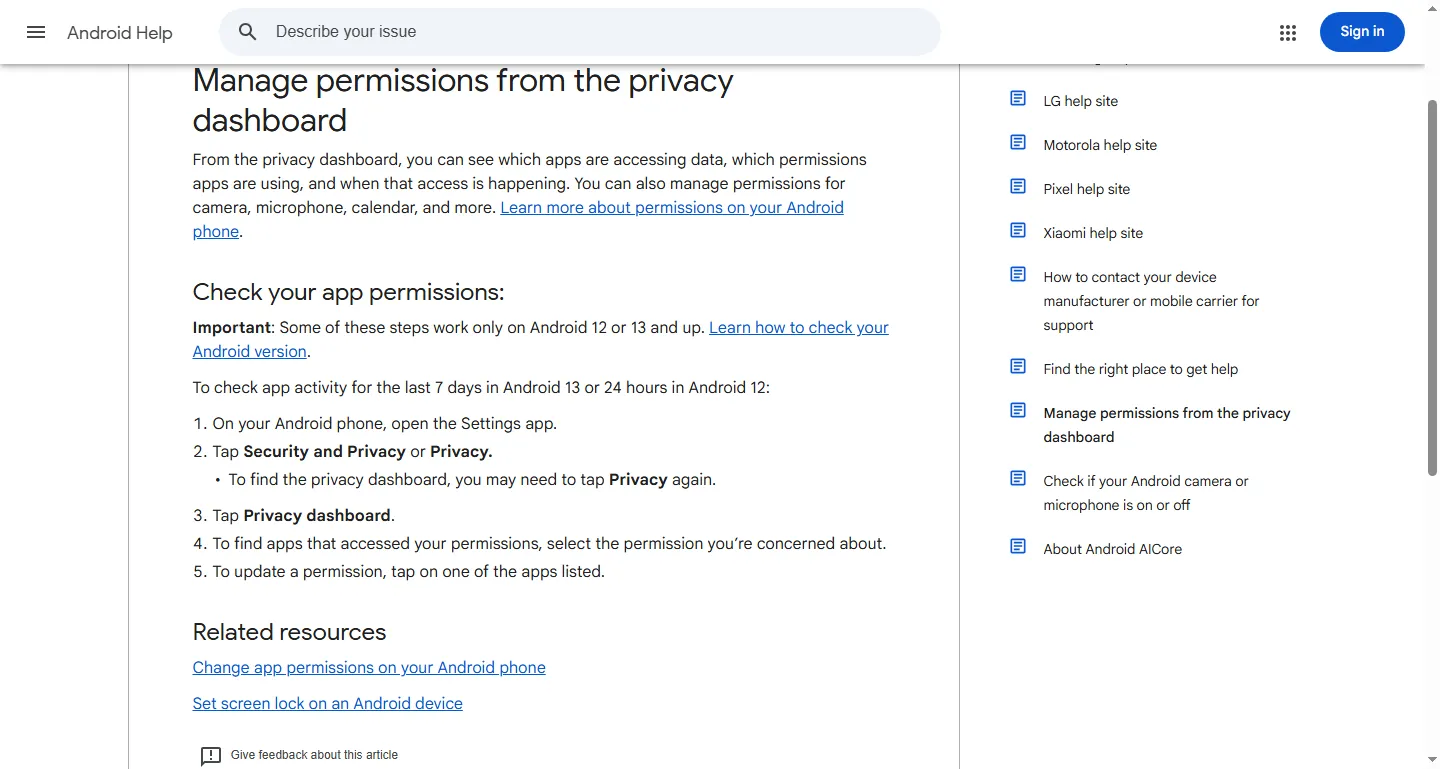
Google’s official steps for reaching the privacy dashboard, which is worth opening even if you change nothing else.
Limit location access to “while using the app.” Both platforms default some apps to “Always” location access when “While Using” would work identically for the app’s actual function. Walk through your location settings list once and downgrade anything that doesn’t need to know where you are when it’s closed. Most apps don’t.
Turn off precise location for apps that don’t need it. A weather or delivery app usually only needs your city, not your exact GPS coordinates. iOS lets you toggle “Precise Location” off per app in the same Location Services menu; Android’s per-app location permission screen offers “approximate” location for the same purpose.
Privacy: lock screen and shared access
Hide notification previews on the lock screen. By default, a text message’s full content can sit readable on your lock screen for anyone nearby. On iPhone, go to Settings > Notifications, tap an app, and change “Show Previews” to “When Unlocked” or “Never” (Apple’s own guide documents this per-app control). Android’s equivalent is under Settings > Notifications, adjusting what shows on the lock screen versus what requires unlocking first.
Run Apple’s Safety Check if you’ve ever shared your phone or location. Settings > Privacy & Security > Safety Check (iOS 16 and later) shows you exactly who and what currently has access to your information and location, and lets you cut it off, including “Emergency Reset,” which instantly stops all sharing at once. It’s designed for people leaving a relationship where access was previously shared, but it’s a useful audit for anyone who’s ever handed their phone to a family member to set something up.
Confirm Find My / Find My Device is actually on. It’s usually enabled by default, but it’s worth a 10-second check. It’s the setting that matters most in the specific bad case where the phone is stolen.
Battery: real savings without breaking anything
Selectively disable Background App Refresh, don’t kill it entirely. Turning it off completely can save meaningful battery, but it also delays things you actually want instantly: two-factor codes, ride-share ETAs, and health app sync. The better trade: leave it on for the 4–5 apps you rely on for real-time updates (Messages, Mail, Maps, your bank), and turn it off for social media, shopping, and games under Settings > General > Background App Refresh on iPhone.
Leave Adaptive Battery turned on, on Android. It’s on by default from Settings > Battery > Adaptive Battery, and it already does the selective throttling described above automatically using on-device machine learning. There’s rarely a reason to fight it by force-closing apps yourself, which can actually increase battery use as apps restart from scratch more often.
The one sanity setting worth adding
Strip location metadata before sharing photos widely, if your phone doesn’t already. A photo posted publicly with embedded GPS coordinates tells anyone who checks exactly where it was taken. Not usually a risk for a coffee photo, but worth knowing before sharing photos taken at home. Both platforms strip this automatically for some sharing methods (like Messages) but not always for others (like some email attachments); when in doubt, check the photo’s info panel before sending.
Worth it for
- Every setting here takes under a minute and costs nothing
- Turning off cross-app tracking is the single highest-impact privacy change on this list
- Selective Background App Refresh saves real battery without breaking notifications you rely on
Skip it if
- Turning off ad tracking does not reduce how many ads you see, just how targeted they are
- Menu paths shift between OS versions and Android manufacturers, expect some hunting
- None of this replaces basic account security like unique passwords and a screen lock
Alternatives
- If you’re doing this cleanup because of a specific scare, how to recognize an AI-generated scam covers the contact-based side of the same problem.
- Reviewing app permissions naturally raises the question of what’s installed in the first place. See AI browser extensions you should avoid for the browser-side equivalent of this audit.
- The other half of a real security baseline is your passwords, not just your settings. See best password managers for ordinary users.
Verdict
USE. None of these settings cost anything, and the highest-impact ones (tracking, lock screen previews, location scope) take under ten minutes combined. Do the privacy settings first; treat the battery tweaks as a bonus, not the main event.
Common questions
Which iPhone privacy settings should I turn off?
Start with Settings > Privacy & Security > Tracking, and turn off “Allow Apps to Request to Track,” then check the list below it for any app still allowed. That single toggle blocks the advertising identifier apps and data brokers use to link your activity across other apps and sites. Pair it with Settings > Privacy & Security > Location Services, and switch anything set to “Always” down to “While Using” unless the app genuinely needs to know where you are when it’s closed.
How do I stop cross-app tracking on Android?
The path is Settings > Google > All services > Privacy & security > Ads, where you can turn off ad personalization and, on many devices, reset or delete your advertising ID outright. Per Google’s own documentation, this doesn’t reduce how many ads you see. It just changes them from targeted to generic.